Tags that only show text
A standard Matterport tour offers tags with a title, some text and a link. They look the same for every brand, sit in the scene, and do nothing more. A 360 photo tour has even fewer options. Visitors wander without direction, and the next step is easy to miss. Branded panels, buttons that stay on screen and actions triggered by location give the visit a shape and a clear next step.
Existing tags kept
Tags you already have in Matterport carry over, and their text can be translated, so earlier work is not thrown away.
Branded information panels
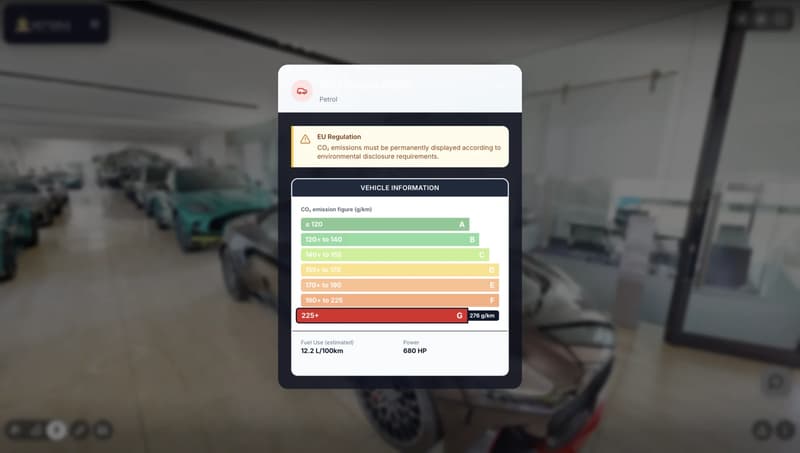
Panels open in your colors and style, with images, text and buttons, rather than the plain default card.
Floating action buttons
Buttons such as Enquire or Book a viewing stay on screen wherever the visitor goes, so the next step is always one tap away.
Actions on arrival
Narration, an overlay, audio or a video can start when the visitor reaches an area, without any click.
Embedded web apps
Open a calculator, a booking engine or another web tool inside a panel, as long as that tool allows embedding.
Guided navigation
Next-room buttons appear when the visitor looks in a set direction, quick-jump menus reach key areas, and guided and free roaming can be combined.
Explore panels and actions at the Boat Show
The Thailand International Boat Show 2025 tour is the live demo for tags and panels. Walk the stands, open the tags and see how information appears where it belongs.
What 360INT takes care of
Xperio3D is developed by 360INT. We capture the space, set the feature up, prepare the content and keep it current, so your team receives a finished experience instead of another tool to learn.
Content planning
We decide which items deserve a tag or panel and which actions belong on screen at all times.
Design in your brand
We style panels and buttons to your identity and write the short texts that go in them.
Place and trigger
We position tags, set the area-based actions and build the navigation menus and direction buttons.
Check and refresh
We test every tag, panel and embedded tool on phone and desktop, then update content as your offer changes.
- —The quality of a panel depends on the images and text you provide, and we help shape thin material.
- —Embedded third-party apps must allow embedding, and some tools block it, so we check each one first.
- —Area-based actions need the relevant areas to be defined in the tour.
From scope to a live interactive tags
- 1Content audit
We review your material and your existing tags, then list what the tour should say and do.
- 2Design and build
We style the panels, write the texts and place tags, buttons and triggers on site.
- 3Test on devices
We click through every element on phones and desktops and fix what fails.
- 4Publish and tune
The tour goes live, and we adjust content and actions as visitors use it.
Industries that use this feature
Interactive Tags: Common Questions
Add interactive tags to your tour
Tell us about your space and the systems you use. We confirm what fits, how it connects and what it costs before anything is booked.
Begin a Project